Discogs & Privacy Proxy
Under Settings → Metadata & Sync → Record Collection, you can configure how Cratr talks to Discogs and MusicBrainz:
- Use Cratr Privacy Proxy: Recommended on. Metadata lookups to Discogs are relayed through Cratr's Cloudflare Worker (with Worker observability logging disabled) so your IP address is hidden from Discogs during searches; cover thumbnails load from Discogs' CDN.
- Link Discogs Account: Connect via one-click OAuth (shows Connected as <username>) or toggle Developer Mode to enter a personal Discogs API token.
- Metadata Source: Choose MusicBrainz first (free, falls back to Discogs), MusicBrainz only, Discogs first, or Discogs only.
- Discogs Sync: Open the sync dialog, enter your Discogs username, and choose a direction:
- Pull: Works with any public Discogs username. Toggle your Wantlist (imports to your Wanted crate) and individual Collection folders, mapping each folder to an existing crate or creating a new crate automatically. Duplicates are skipped and custom
Quantity/Qtyfields are preserved. - Push: Sends local records that have a Discogs ID back to your account — Owned records go to your Discogs Collection and Wanted records go to your Wantlist. Records already in your Discogs account are skipped, and pushing never deletes items on Discogs.
- Both: Pulls from Discogs first, then pushes local updates back.
- Pull: Works with any public Discogs username. Toggle your Wantlist (imports to your Wanted crate) and individual Collection folders, mapping each folder to an existing crate or creating a new crate automatically. Duplicates are skipped and custom
- Refresh Record Library: Backfill missing covers and metadata across existing records.
ComicVine & Metron
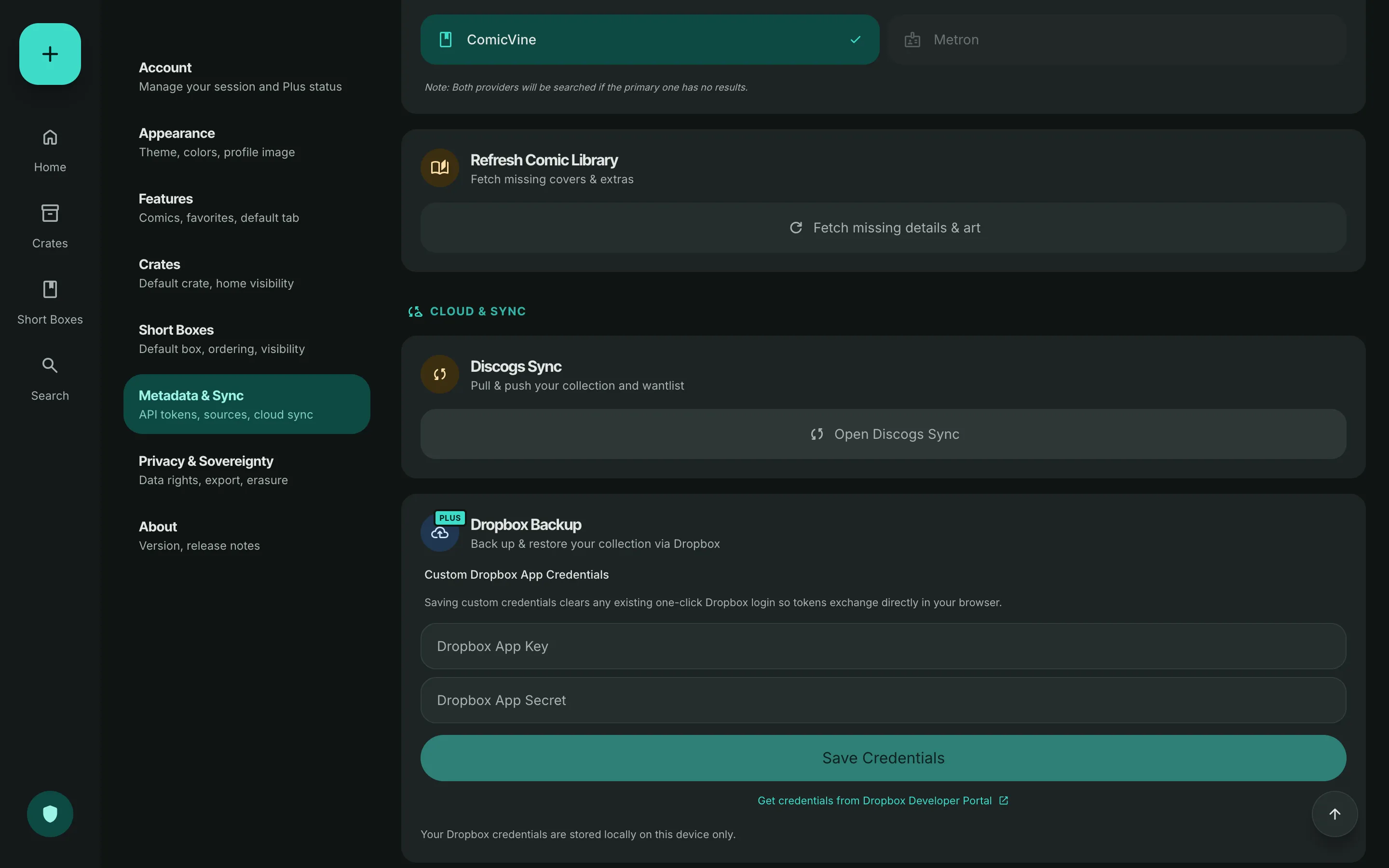
When Comic Books is enabled, configure your comic metadata providers under Settings → Metadata & Sync → Comic Collection:
- ComicVine API Key: Paste your free personal ComicVine key.
- Metron Credentials: Paste your personal Metron API token.
- Comic API Priority: Pick ComicVine or Metron as your primary source (both are searched if the primary provider returns no results).
- Refresh Comic Library: Fetch missing covers and creator/publisher extras for comics already in your boxes.
Google Drive & Dropbox Sync Plus
Cratr Plus
Automatic Cloud Sync to Google Drive and Dropbox is available in Cratr Plus. Standard local JSON backup & restore is always free.
Under Settings → Metadata & Sync, connect either Google Drive Backup or Dropbox Backup:
- One-Click OAuth: Sign in with a single tap to store private app backups in your own cloud storage.
- Advanced Mode (BYO Credentials): Provide your own Google OAuth Client ID or Dropbox App Key & Secret to exchange and refresh tokens directly from your browser without using the Cratr auth broker. Saving custom credentials clears any existing one-click tokens.
- Manual Backup & Restore: Trigger an immediate snapshot at any time, or browse timestamped cloud backups to merge/restore them into your local library.
- Auto Sync Schedule: Toggle Auto sync on, pick an interval (Every 30 min, Every hour, Every 6 hours, Every 12 hours, or Every 24 hours), and choose whether syncing is allowed on mobile data.
- Token Safety: Restoring a cloud backup merges your library cleanly and preserves your local API tokens instead of overwriting them.
Plex Integration Plus
Connect your Plex Media Server under Settings → Metadata & Sync → Integrations to browse your digital music library alongside your physical crates and check what you own physically vs digitally:
- PIN Sign-In: Authorize via
app.plex.tvwithout entering your Plex password inside Cratr. - Server & Library Selection: Pick your Plex server (direct connections are preferred over relay) and select which Music library to sync into a dedicated Plex crate.
- Manual & Auto Sync: Sync on demand or enable Auto sync on a 30-minute to 24-hour schedule. Your Plex library cache is also included in local and cloud backups.
Lidarr Integration Plus
Connect Lidarr under Settings → Metadata & Sync → Integrations to keep your physical Wanted crate and digital monitoring aligned:
- URL & API Key: Enter your Lidarr instance URL and API key; Cratr tests the connection before saving.
- Lidarr Wanted Crate: Syncs your Lidarr wanted queue into a dedicated Lidarr Wanted crate, reporting added and removed albums.
- Library Refresh & Auto Sync: Trigger a Lidarr metadata refresh directly from Cratr or enable Auto sync on a 30-minute to 24-hour schedule.